> For the complete documentation index, see [llms.txt](https://docs.toucanai.cloud/llms.txt). Markdown versions of documentation pages are available by appending `.md` to page URLs; this page is available as [Markdown](https://docs.toucanai.cloud/getting-started/quick-start/embed-a-dashboard.md).
# Embed a dashboard
{% hint style="info" %}
**Target Audience**: Non technical users & Developers
{% endhint %}
### Goal
Create and embed a functional dashboard into an application using AI-assisted workflows.
For each step, you will find more information in the dedicated practical guide (**How-To** sections).
***
### Prerequisites
* A [Toucan AI account](/getting-started/quick-start/subscribe-to-toucan.md) and active organization.
* Credentials for a supported SQL database (e.g., PostgreSQL).
* A code editor or environment for testing HTML/web components (e.g., CodePen).
***
### Steps
#### 1: Create an API Key
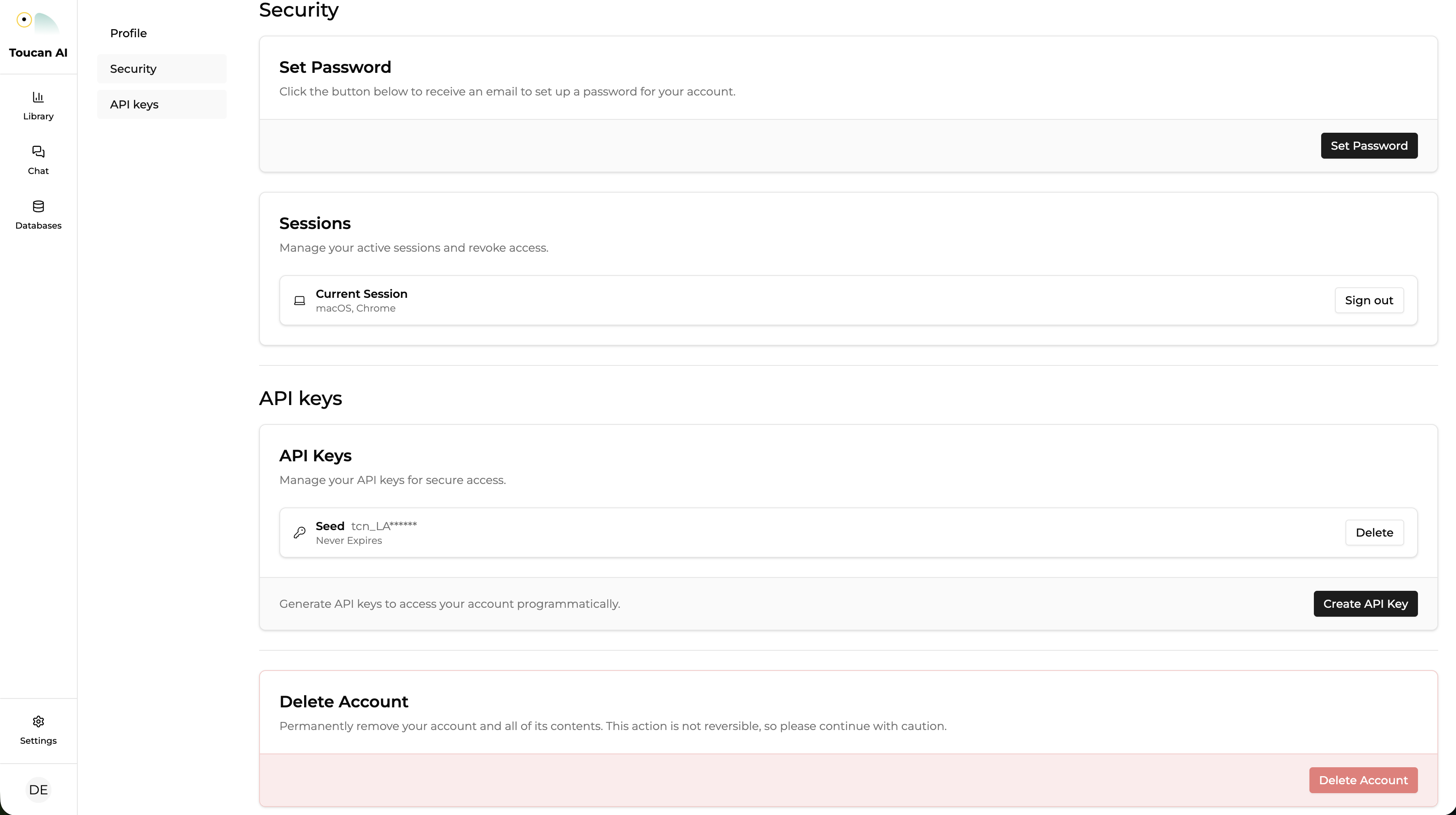
* Navigate to your Account settings page by clicking on your profile icon in the bottom left corner, then go to the **API Keys** section.
* Create a new **API Key**. Copy it and store it securely.
This key will be used on your backend server to securely generate authentication tokens for your embedded application.
{% hint style="danger" %}
**Security Alert**: This is a secret key. Never expose it in client-side code (HTML, JavaScript). Use it only on your secure backend server.
{% endhint %}
#### 2: Implement a user attribute model
(Optional) Define the attributes that will contextually personalize the experience for your users.
{% hint style="danger" %}
The user model will define user access to data (see "Define Row-Level Security (RLS)").
{% endhint %}
**Register User Attributes**
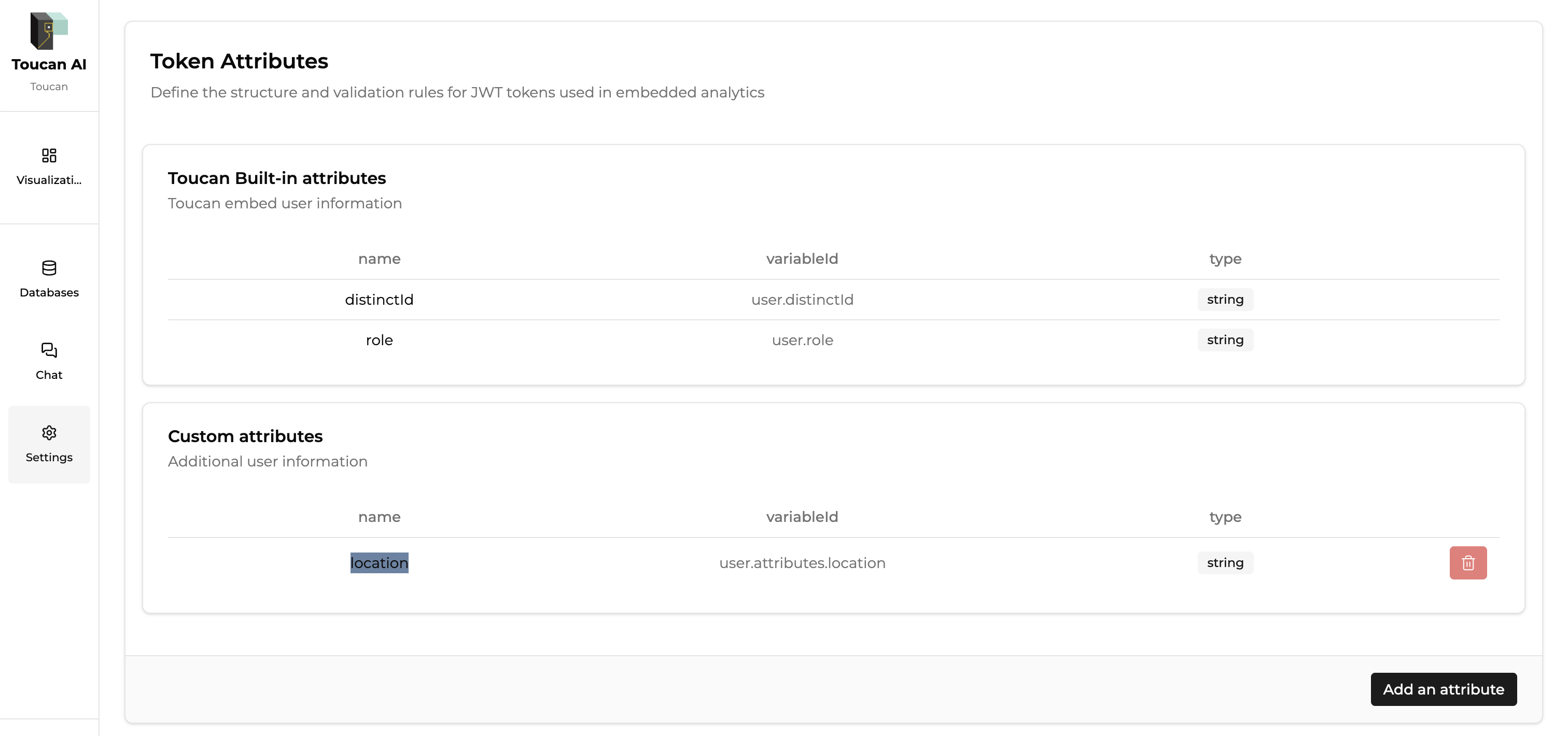
* Navigate to **Settings > Embed & access**.
* In the **Token Attributes** section, click **Add an attribute**.
* Define the traits you need (e.g., name: `region`, type: `String`). These must match the keys you will send in your user tokens.
#### 3: Connect to a Database
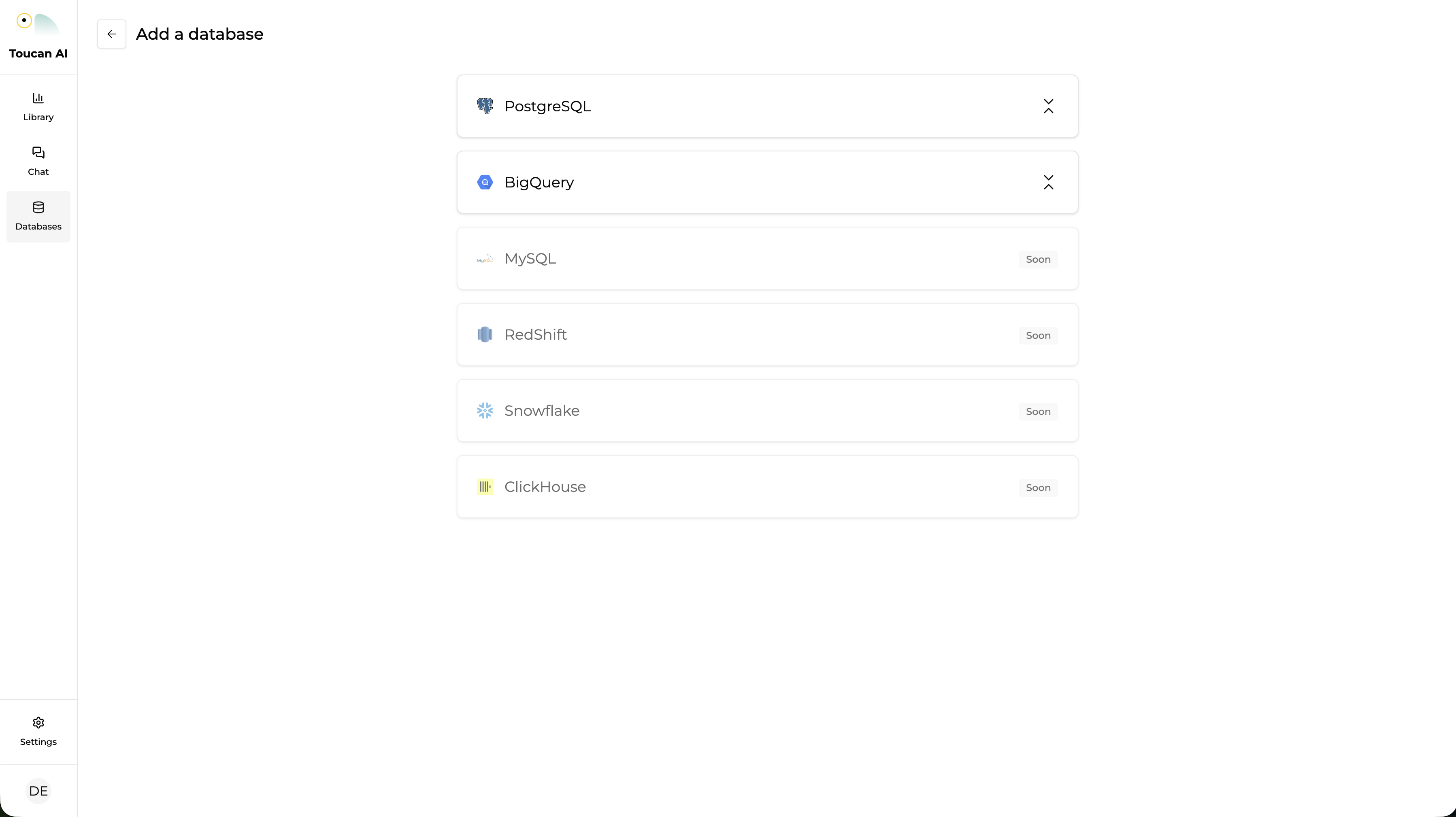
* Navigate to the **Database** tab from the Home Page.
* Click **Add a Database** and select a connector.
* Input connection details including Host, Username, Password, and Database name.
* Click **Test Connection**, then click **Connect**.
{% hint style="info" %}
**Example:** Connect to your HR database containing employee data, including a **location** column with values like Tokyo, Paris, etc.
{% endhint %}
**How-To**: [Add a database](/build/data-connections/how-to/add-a-database.md)
#### 4: Complete Metadata Information
* Review existing table and column descriptions for accuracy.
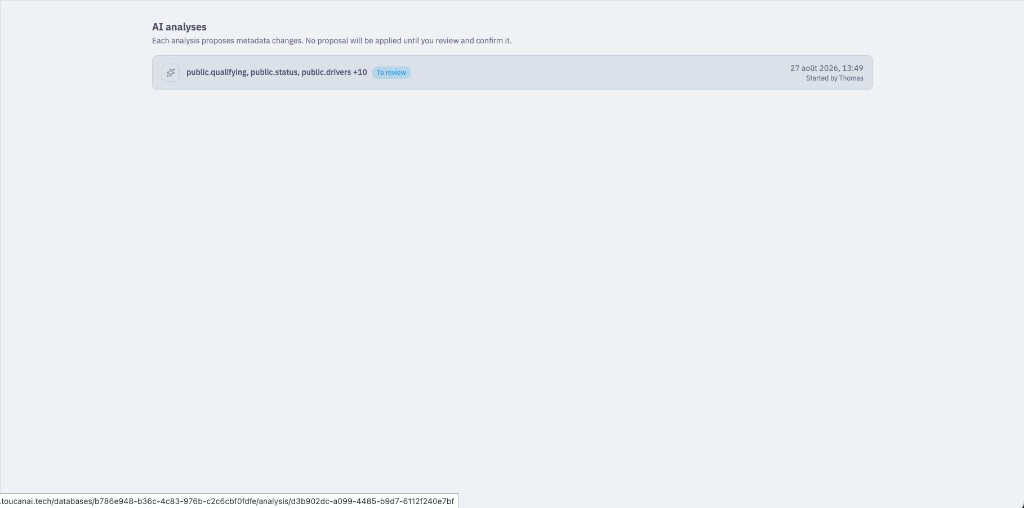
* **(Recommended)**: Click **Analyze** from the database **More options** menu (⋮) to start an AI analysis run on selected schemas and tables.
* The AI **proposes** descriptions, display names, and type casts — nothing is applied until you review and confirm.
* Open **AI analyses** from the same menu to review proposals by kind (type casts, display names, descriptions).
* Confirm each section to apply accepted proposals to your metadata.
* Ensure critical columns are described plainly to improve future AI prompt results.
**How-To**: [Analyze your database with AI](/build/analyze-your-database-with-ai/how-to/analyze-your-database-with-ai.md) · [Review AI analysis proposals](/build/analyze-your-database-with-ai/how-to/review-ai-analysis-proposals.md)
#### 5: Define Row-Level Security (RLS)
Secure your data so users only see what they are authorized to access.
1. Go to the **Database** tab and select a table.
2. In the **Access rules** section, map a **User Attribute** to a specific **dataset field** (a column of the table).
* *Example*: Map the `user.region` attribute to the `sales_region` column.
This ensures that the AI automatically applies a filter (e.g., `WHERE sales_region = "North"`) based on the user attribute.
**How-To**: [Apply RLS to your database](https://github.com/ToucanToco/toucan-ai/blob/main/docs/permissions-and-row-level-security/how-to/apply-rls-to-your-database.md)
#### 6: Create a Dashboard with AI
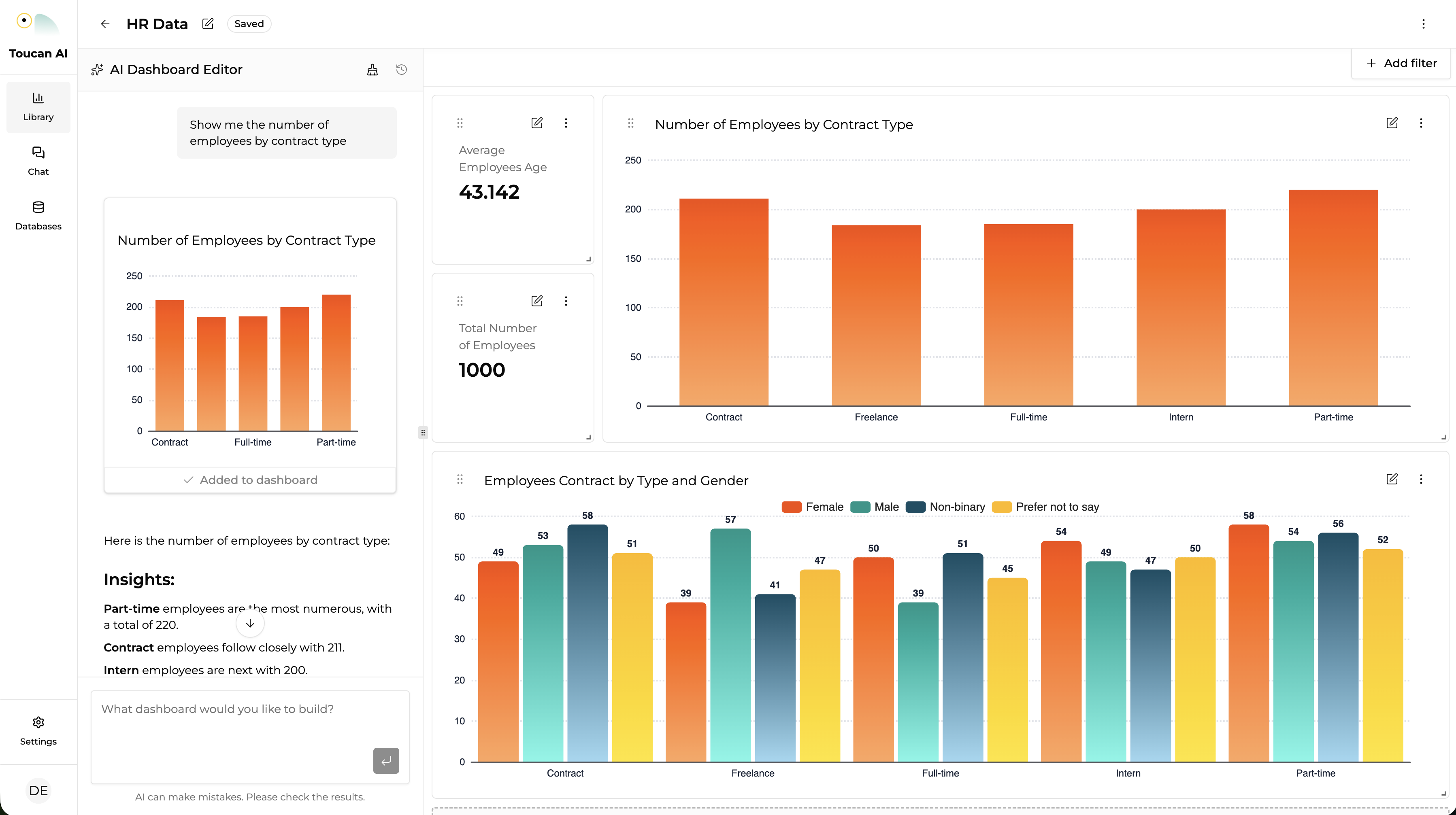
* Open the **Library** menu and locate the conversational prompt interface.
* Enter a natural language prompt.
* Review the AI-generated charts and modify filters or layouts as required.
{% hint style="info" %}
**Example:** The AI creates a dashboard that tracks employee contract types and locations (e.g., Tokyo, Paris).
{% endhint %}
**How-To**: [Create a dashboard with AI](/build/dashboards-and-layouts/how-to/create-a-dashboard-with-ai.md)
#### 7: Get an auth token
{% hint style="info" %}
You can customize the way the AI assistant will behave thanks to "AI context clues" within the token, where you can define the tone of voice, company context, etc.
{% endhint %}
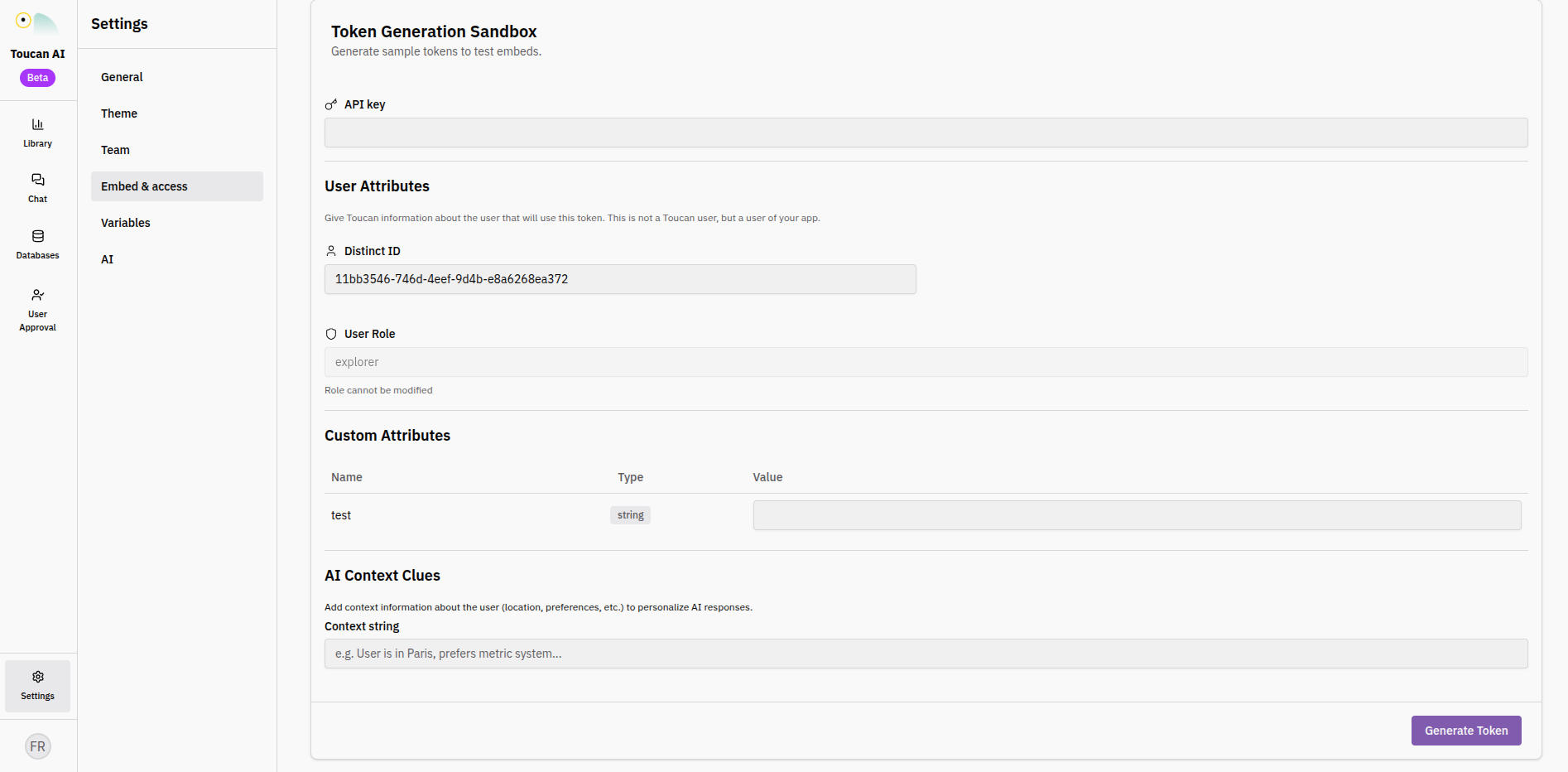
For testing and configuration, you can generate a temporary token directly from the Toucan AI interface.
* Navigate to **Settings > Embed & access**.
* Scroll down to the **Token Generation Sandbox** section.
* Paste your **API Key**.
* Under **User Attributes**, configure the values for any custom attributes as well as the `aiContextClues` for this token.
* Click **Generate Token** and copy the resulting string.
{% hint style="info" %}
**Production Note**: For a live application, your backend server would generate these tokens dynamically via the API to securely authenticate your users and apply the correct security filters.
{% endhint %}
#### 8: Configure CORS and embed the dashboard
Before your embed can render, you must authorize the domain where it will be hosted.
* In the **Embed & access** settings, locate the **Authorized Origins** section.
* Add the URL of your application or development environment (e.g., `https://codepen.io`) and click Save.
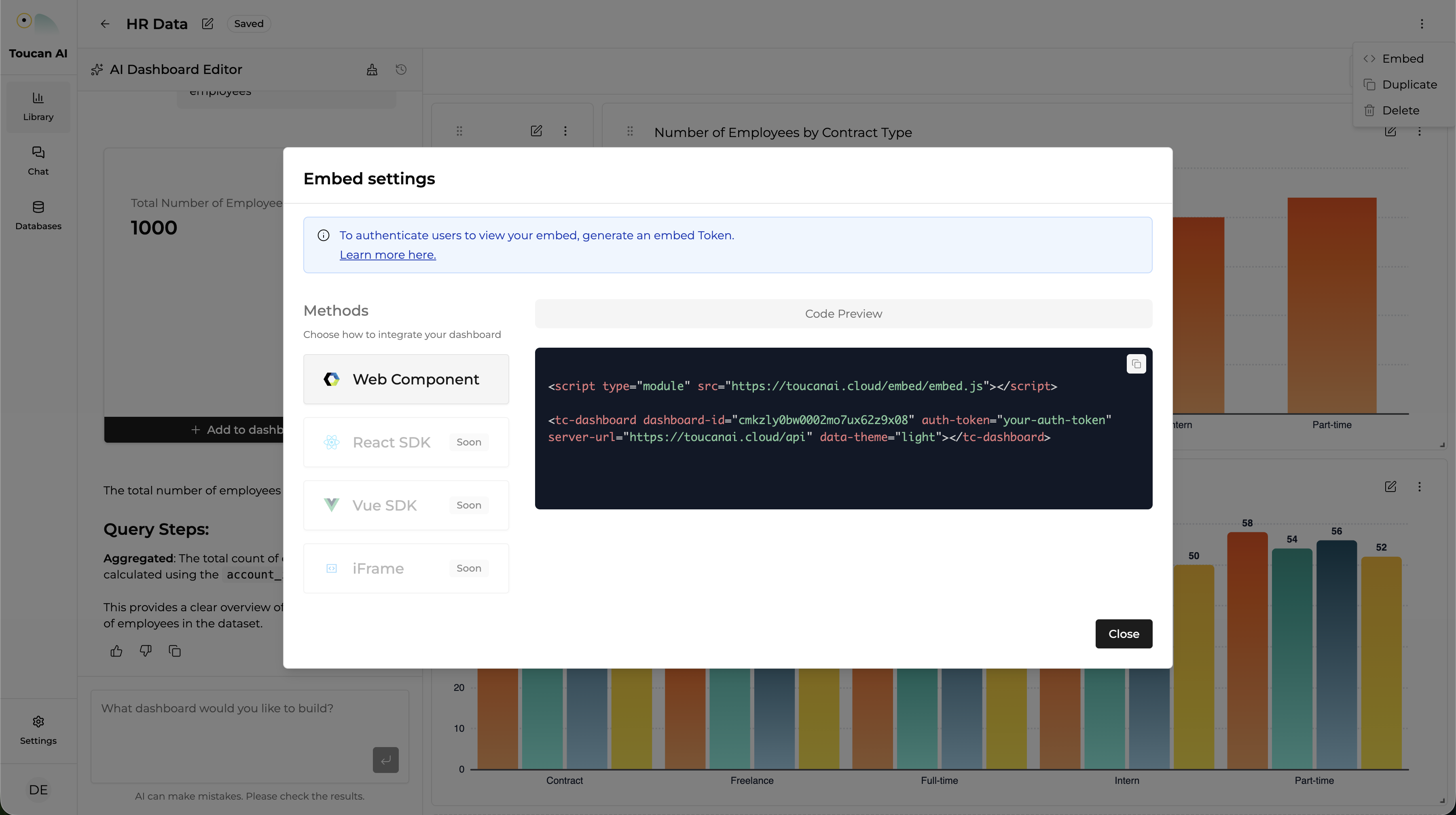
* Go back to your dashboard
* Select **Embed** from the dashboard menu (three-dot icon).
* Copy the `` web component code.
* Paste the code into your application's HTML.
* Replace the `Auth-Token` placeholder with your generated token.
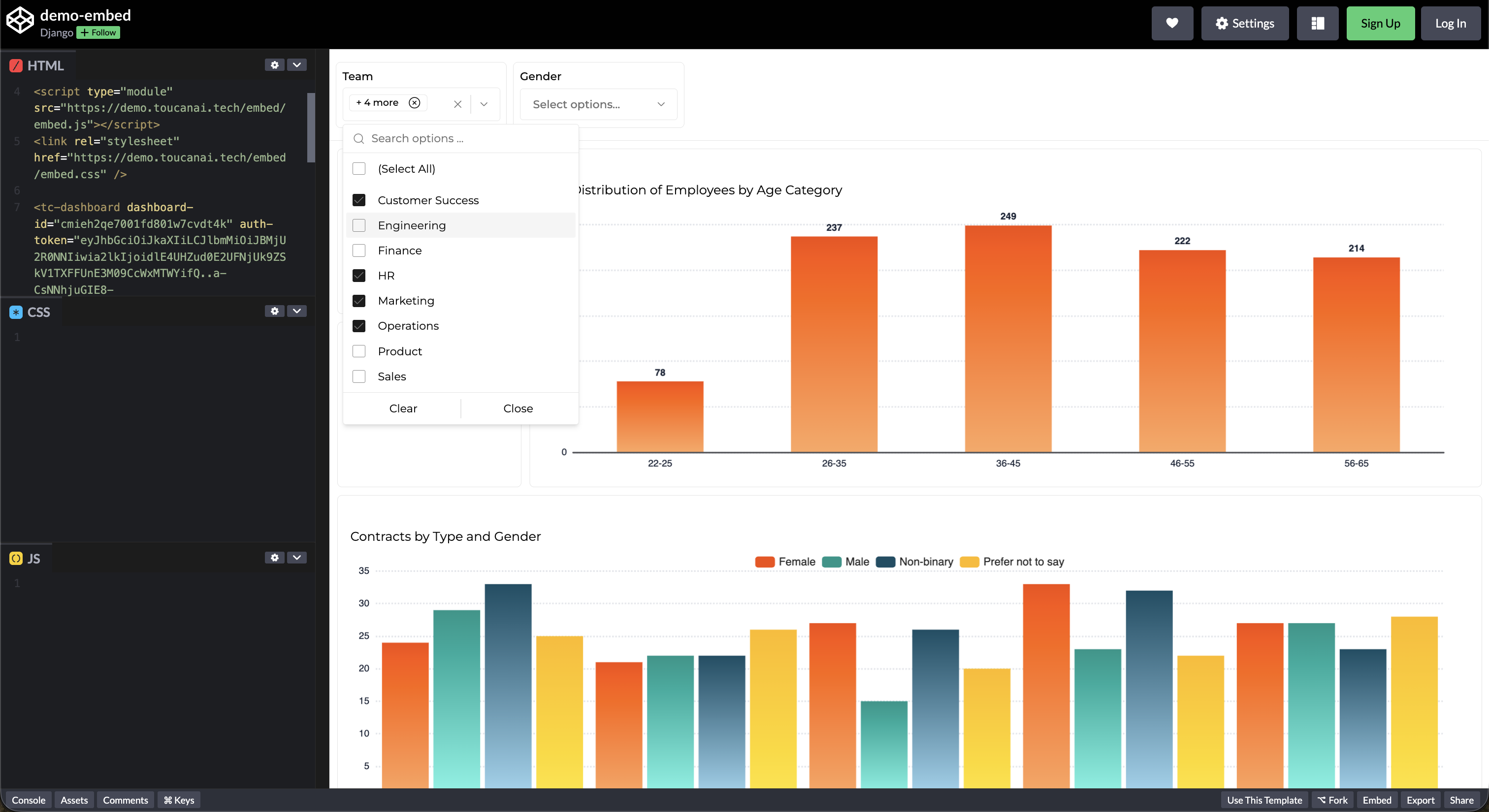
Once the token has been copied into the web component, this is what it looks like (here on codepen.io, for example).
**How-To**: [Embed a dashboard](/embed/embedding-overview/how-to/embed-a-dashboard.md)
***
### Conclusion
The dashboard is now connected to live data and embedded within the host application. To move to production, implement a server-side endpoint to generate tokens dynamically for authenticated users.