'%3e%3cpath%20fill-rule='evenodd'%20clip-rule='evenodd'%20d='M0%2062.3176C0%2027.9001%2027.8995%200.00181961%2062.3134%200.00181961L62.3999%2062.2311C62.3999%2096.6462%2034.5004%20124.544%200.0852901%20124.544'%20fill='%233A3D3C'/%3e%3c/g%3e%3cpath%20d='M62.3994%2062.2461V0C96.8133%200%20124.713%2027.8982%20124.713%2062.3158'%20fill='url(%23paint0_linear_6331_3458)'/%3e%3cpath%20fill-rule='evenodd'%20clip-rule='evenodd'%20d='M45.617%2026.2827C47.7276%2026.2827%2049.4382%2027.9933%2049.4382%2030.1052C49.4382%2032.2146%2047.7276%2033.9252%2045.617%2033.9252C43.5064%2033.9252%2041.7958%2032.2146%2041.7958%2030.1052C41.7958%2027.9933%2043.5064%2026.2827%2045.617%2026.2827Z'%20fill='%23F9F6EF'/%3e%3cpath%20fill-rule='evenodd'%20clip-rule='evenodd'%20d='M45.6168%2045.2338C37.2596%2045.2338%2030.4857%2038.461%2030.4857%2030.1038C30.4857%2021.7454%2037.2596%2014.9702%2045.6168%2014.9702C53.9753%2014.9702%2060.7492%2021.7454%2060.7492%2030.1038C60.7492%2038.461%2053.9753%2045.2338%2045.6168%2045.2338ZM45.6168%2012.6686C35.9875%2012.6686%2028.1816%2020.4744%2028.1816%2030.1038C28.1816%2039.7308%2035.9875%2047.5378%2045.6168%2047.5378C55.245%2047.5378%2063.0508%2039.7308%2063.0508%2030.1038C63.0508%2020.4744%2055.245%2012.6686%2045.6168%2012.6686Z'%20fill='%23FECE01'/%3e%3cdefs%3e%3clinearGradient%20id='paint0_linear_6331_3458'%20x1='62.2719'%20y1='4.01754'%20x2='108.703'%20y2='70.5262'%20gradientUnits='userSpaceOnUse'%3e%3cstop%20stop-color='%239ED5CB'/%3e%3cstop%20offset='1'%20stop-color='%23FCE18E'/%3e%3c/linearGradient%3e%3c/defs%3e%3c/svg%3e)
Embed a self-service dashboard editor
Target Audience: Non technical users & Developers
Goal
Configure and embed a self-service dashboard editor into your application so end users can create their own dashboards from scratch.
Each dashboard is personal to the authenticated user and linked to the provided auth-token.
What this enables:
- End users create dashboards without leaving your app
- Dashboard ownership is scoped per user token
Prerequisites
- A Toucan AI account and active organization.
- Credentials for a supported SQL database (e.g., PostgreSQL).
- A code editor or environment for testing HTML/web components (e.g., CodePen).
This feature is currently configured through code integration (documentation snippet), not through the Toucan AI interface.
Steps
1: Create an API Key
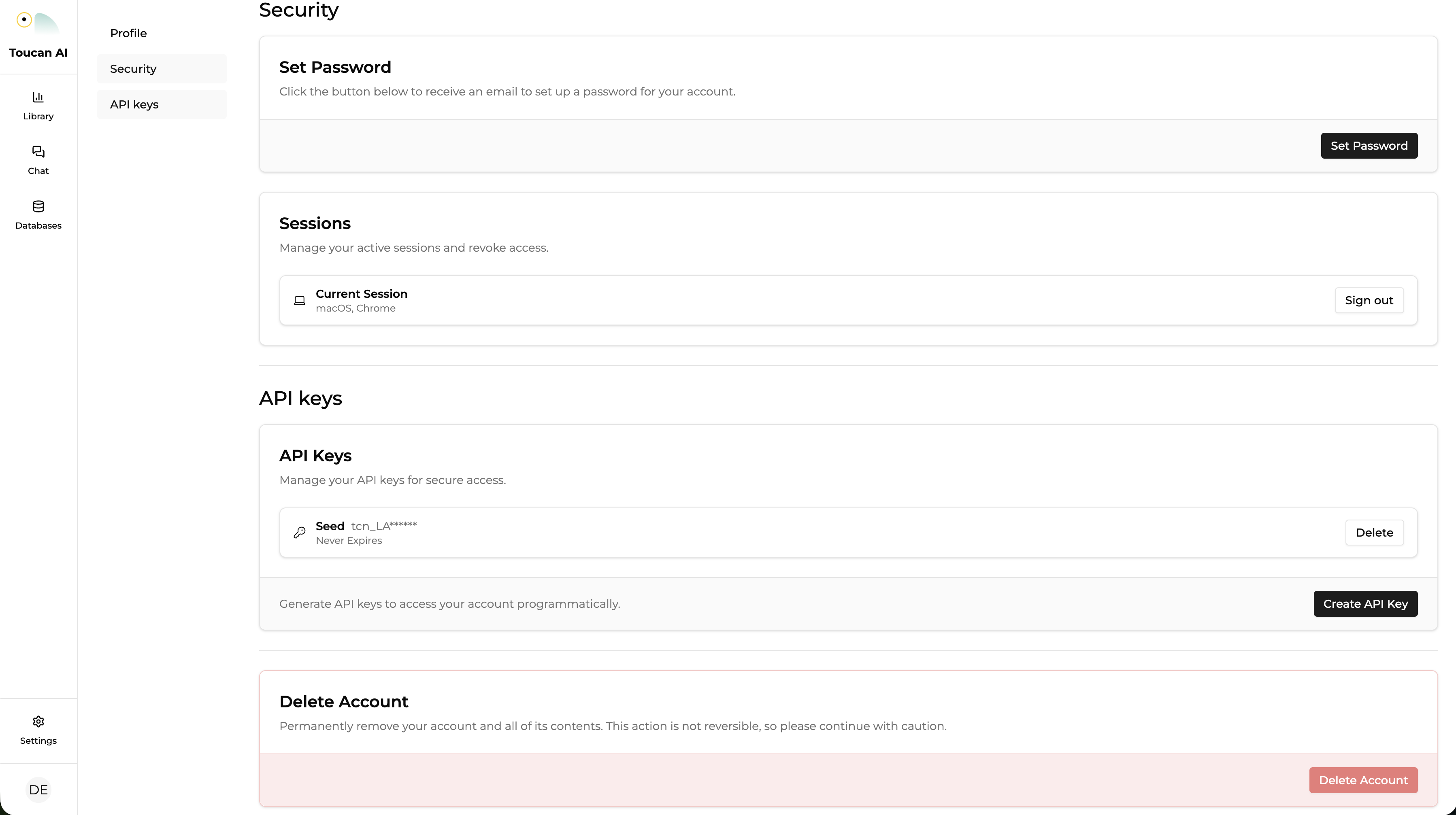
- Navigate to your Account settings page by clicking on your profile icon in the bottom left corner, then go to the API Keys section.
- Create a new API Key. Copy it and store it securely.
This key will be used on your backend server to securely generate authentication tokens for your embedded application.
Security Alert: This is a secret key. Never expose it in client-side code (HTML, JavaScript). Use it only on your secure backend server.
2: Implement a user attribute model
(Optional) Define the attributes that will contextually personalize the experience for your users.
The user model will define user access to data (see "Define Row-Level Security (RLS)").
Register User Attributes
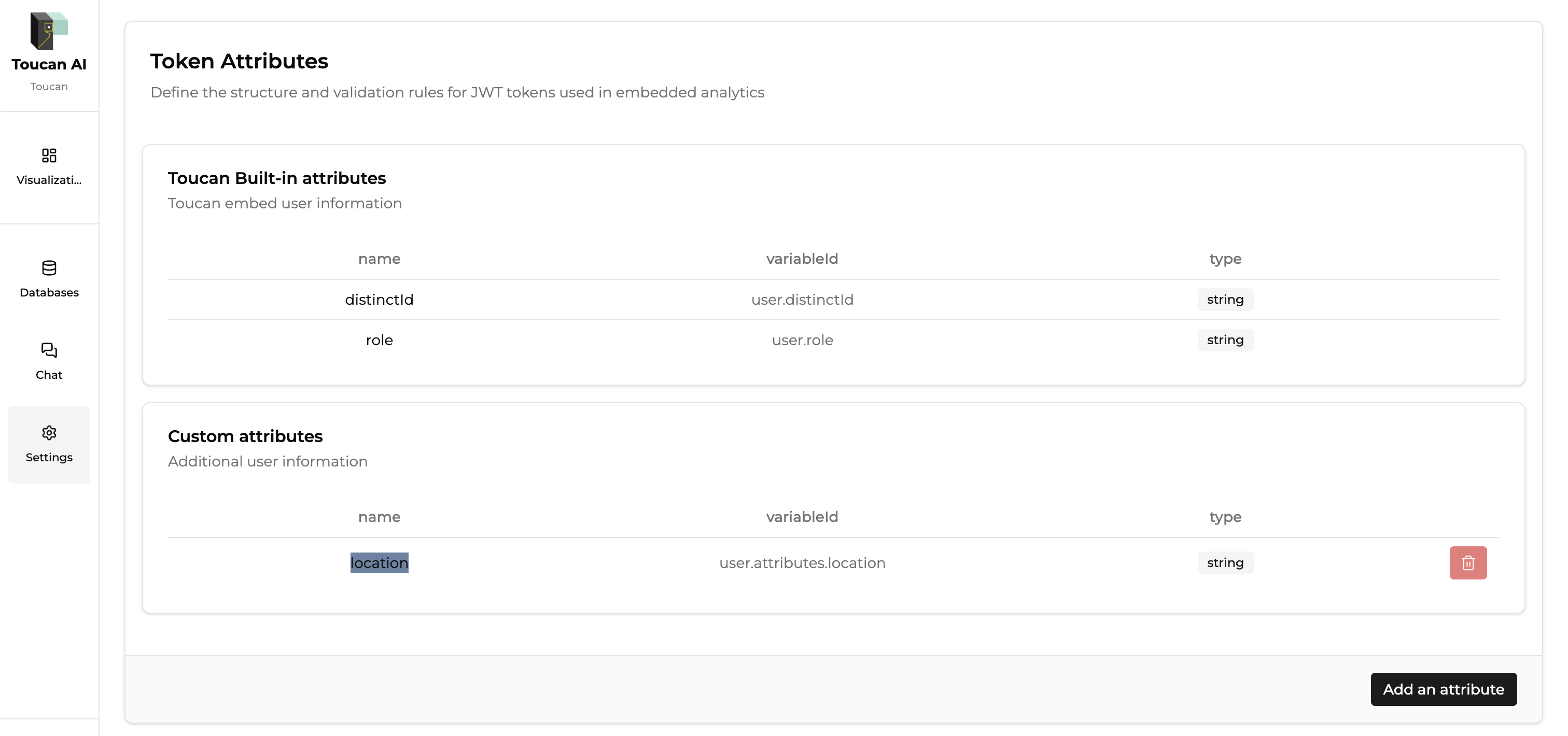
- Navigate to Settings > Embed & access.
- In the Token Attributes section, click Add an attribute.
- Define the traits you need (e.g., name:
region, type:String). These must match the keys you will send in your user tokens.
3: Connect to a Database
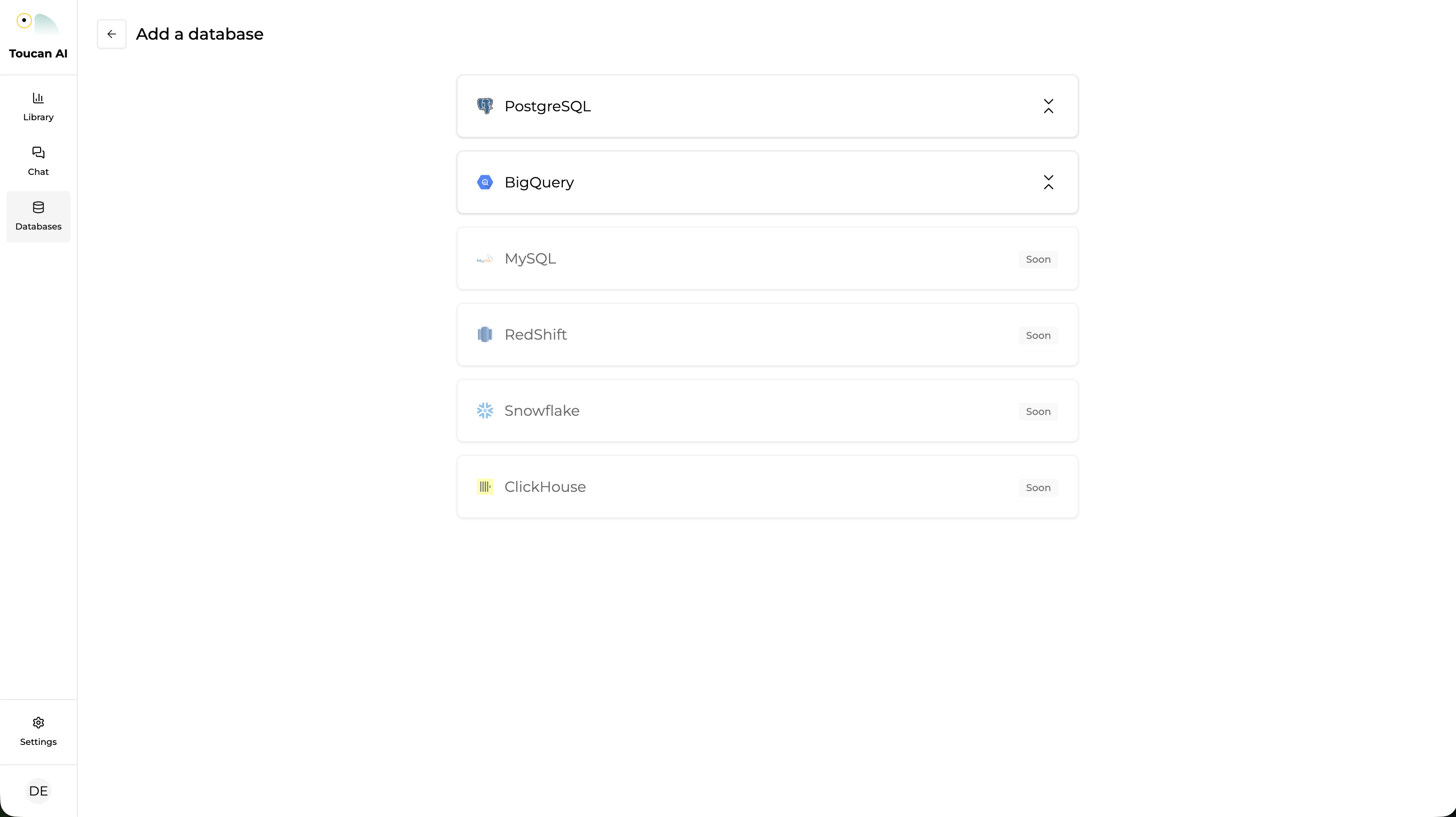
- Navigate to the Database tab from the Home Page.
- Click Add a Database and select a connector.
- Input connection details including Host, Username, Password, and Database name.
- Click Test Connection, then click Connect.
Example: Connect to your HR database containing employee data, including a location column with values like Tokyo, Paris, etc.
How-To: Add a database
4: Complete Metadata Information
- Review existing table and column descriptions for accuracy.
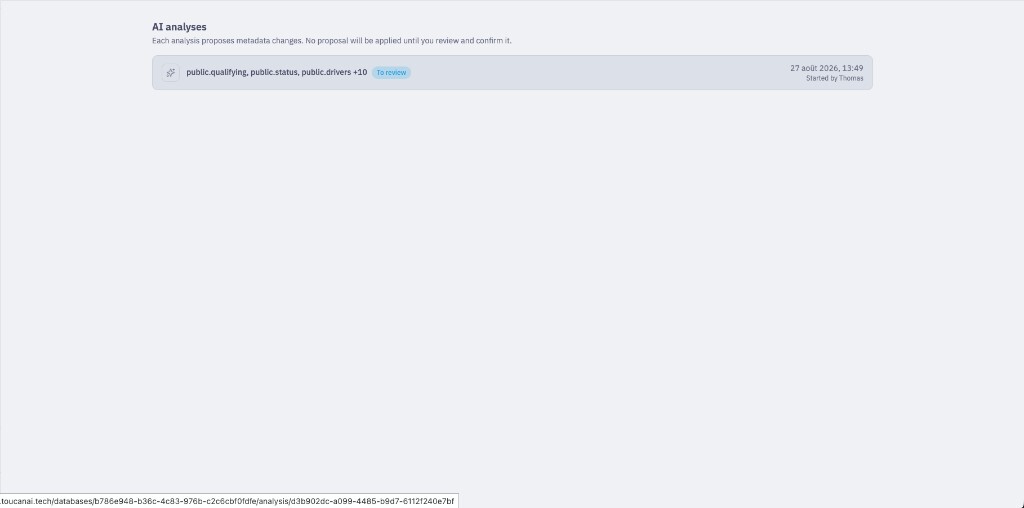
- (Recommended): Click Analyze from the database More options menu (⋮) to start an AI analysis run on selected schemas and tables.
- The AI proposes descriptions, display names, and type casts — nothing is applied until you review and confirm.
- Open AI analyses from the same menu to review proposals by kind (type casts, display names, descriptions).
- Confirm each section to apply accepted proposals to your metadata.
- Ensure critical columns are described plainly to improve future AI prompt results.
How-To: Analyze your database with AI · Review AI analysis proposals
5: Define Row-Level Security (RLS)
Secure your data so users only see what they are authorized to access.
- Go to the Database tab and select a table.
- In the Access rules section, map a User Attribute to a specific dataset field (a column of the table).
- Example: Map the
user.regionattribute to thesales_regioncolumn.
- Example: Map the
This ensures that the AI automatically applies a filter (e.g., WHERE sales_region = "North") based on the user attribute.
How-To: Apply RLS to your database
6: Behavior and user scope
- The embedded editor lets users create dashboards from scratch.
- Each user only accesses their own dashboard workspace.
- A different
auth-tokenresults in a different personal dashboard context.
7: Get an auth token
You can customize the way the AI assistant will behave thanks to "AI context clues" within the token, where you can define the tone of voice, company context, etc.
For testing and configuration, you can generate a temporary token directly from the Toucan AI interface.
- Navigate to Settings > Embed & access.
- Scroll down to the Token Generation Sandbox section.
- Paste your API Key.
- Under User Attributes, configure the values for any custom attributes as well as the
aiContextCluesfor this token. - Click Generate Token and copy the resulting string.
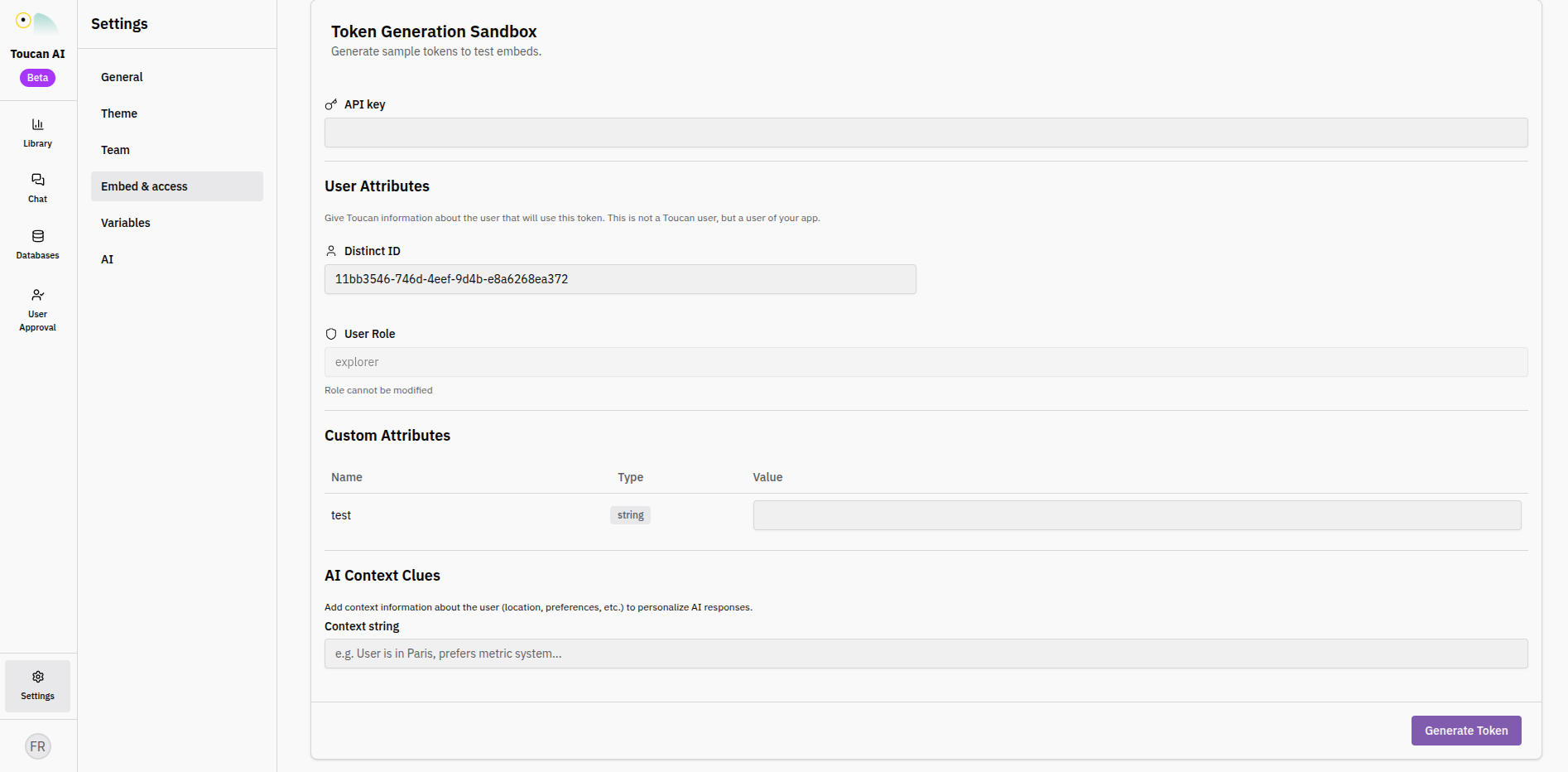
Production Note: For a live application, your backend server would generate these tokens dynamically via the API to securely authenticate your users and apply the correct security filters.
8: Configure CORS and embed the dashboard editor
Before your embed can render, you must authorize the domain where it will be hosted.
- In the Embed & access settings, locate the Authorized Origins section.
- Add the URL of your application or development environment (e.g.,
https://codepen.io) and click Save.
- Copy the
<tc-self-service-dashboard/>web component code:
<script type="module" src="https://toucanai.cloud/embed/embed.js"></script>

<tc-self-service-dashboard
  server-url="https://toucanai.cloud/api"
  auth-token="your-auth-token"
  data-theme="light">
</tc-self-service-dashboard>- Paste the code into your application's HTML.
- Replace the
Auth-Tokenplaceholder with your generated token.
Once the token has been copied into the web component, this is what it looks like (here on codepen.io, for example).
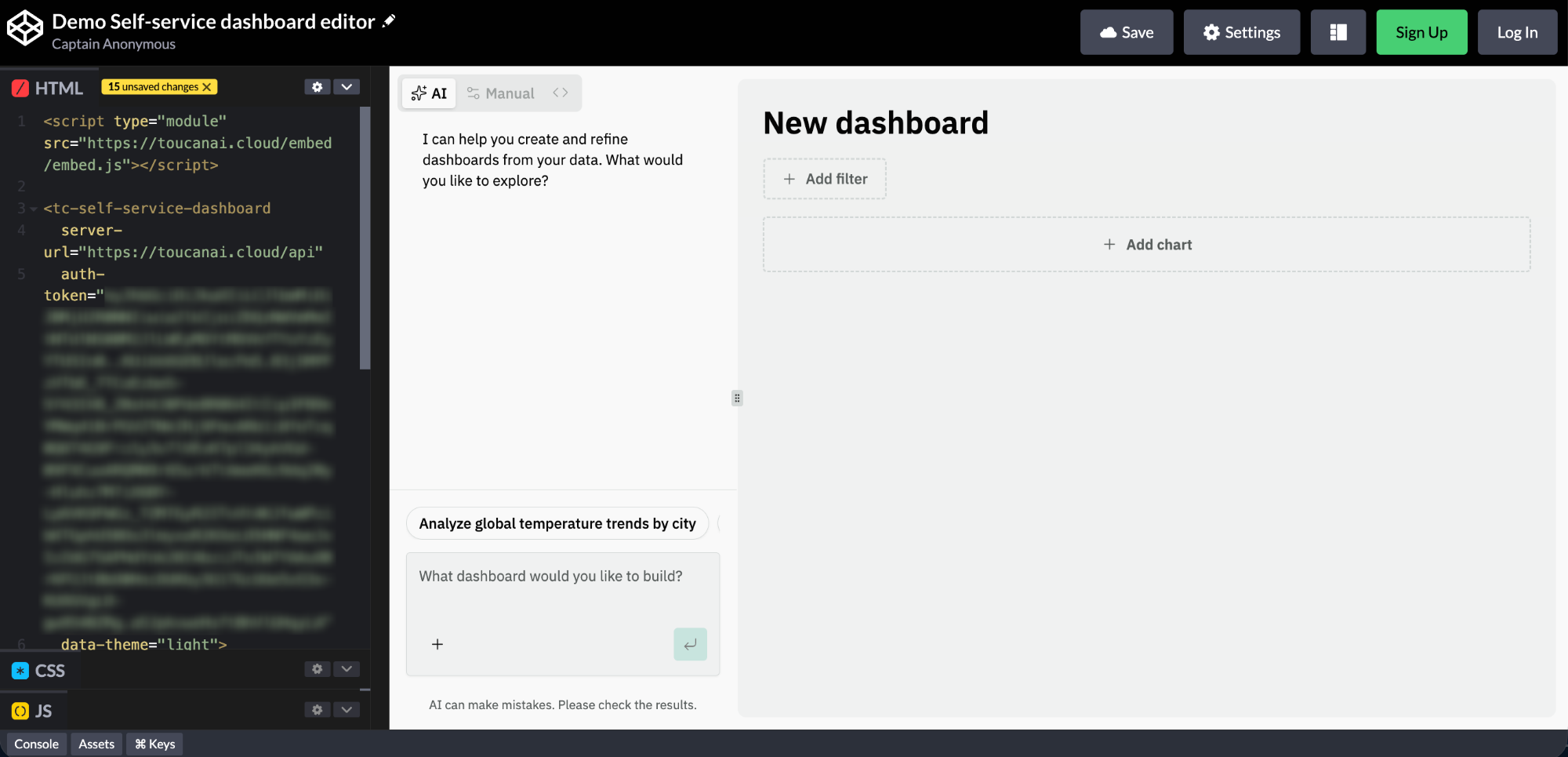
The AI chat + dashboard option is available on the Grow pricing plan.
Conclusion
You have successfully embedded a self-service dashboard editor.
Your end users can now create and manage their own personal dashboards directly in your application, with each dashboard securely tied to the user’s authentication token.