'%3e%3cpath%20fill-rule='evenodd'%20clip-rule='evenodd'%20d='M0%2062.3176C0%2027.9001%2027.8995%200.00181961%2062.3134%200.00181961L62.3999%2062.2311C62.3999%2096.6462%2034.5004%20124.544%200.0852901%20124.544'%20fill='%233A3D3C'/%3e%3c/g%3e%3cpath%20d='M62.3994%2062.2461V0C96.8133%200%20124.713%2027.8982%20124.713%2062.3158'%20fill='url(%23paint0_linear_6331_3458)'/%3e%3cpath%20fill-rule='evenodd'%20clip-rule='evenodd'%20d='M45.617%2026.2827C47.7276%2026.2827%2049.4382%2027.9933%2049.4382%2030.1052C49.4382%2032.2146%2047.7276%2033.9252%2045.617%2033.9252C43.5064%2033.9252%2041.7958%2032.2146%2041.7958%2030.1052C41.7958%2027.9933%2043.5064%2026.2827%2045.617%2026.2827Z'%20fill='%23F9F6EF'/%3e%3cpath%20fill-rule='evenodd'%20clip-rule='evenodd'%20d='M45.6168%2045.2338C37.2596%2045.2338%2030.4857%2038.461%2030.4857%2030.1038C30.4857%2021.7454%2037.2596%2014.9702%2045.6168%2014.9702C53.9753%2014.9702%2060.7492%2021.7454%2060.7492%2030.1038C60.7492%2038.461%2053.9753%2045.2338%2045.6168%2045.2338ZM45.6168%2012.6686C35.9875%2012.6686%2028.1816%2020.4744%2028.1816%2030.1038C28.1816%2039.7308%2035.9875%2047.5378%2045.6168%2047.5378C55.245%2047.5378%2063.0508%2039.7308%2063.0508%2030.1038C63.0508%2020.4744%2055.245%2012.6686%2045.6168%2012.6686Z'%20fill='%23FECE01'/%3e%3cdefs%3e%3clinearGradient%20id='paint0_linear_6331_3458'%20x1='62.2719'%20y1='4.01754'%20x2='108.703'%20y2='70.5262'%20gradientUnits='userSpaceOnUse'%3e%3cstop%20stop-color='%239ED5CB'/%3e%3cstop%20offset='1'%20stop-color='%23FCE18E'/%3e%3c/linearGradient%3e%3c/defs%3e%3c/svg%3e)
Review AI analysis proposals
Target Audience: Non technical users
Goal
Review the metadata proposals produced by an AI analysis run, decide what to keep or discard, and confirm each section so accepted changes update your metadata in Toucan AI.
Prerequisites
- At least one AI analysis run has completed on the database.
- You have access to the Databases section as a builder or admin.
Steps
1. Open the AI analyses list
- Navigate to Databases and open the database you analyzed.
- Open the More options menu (⋮) in the database header.
- Select AI analyses.
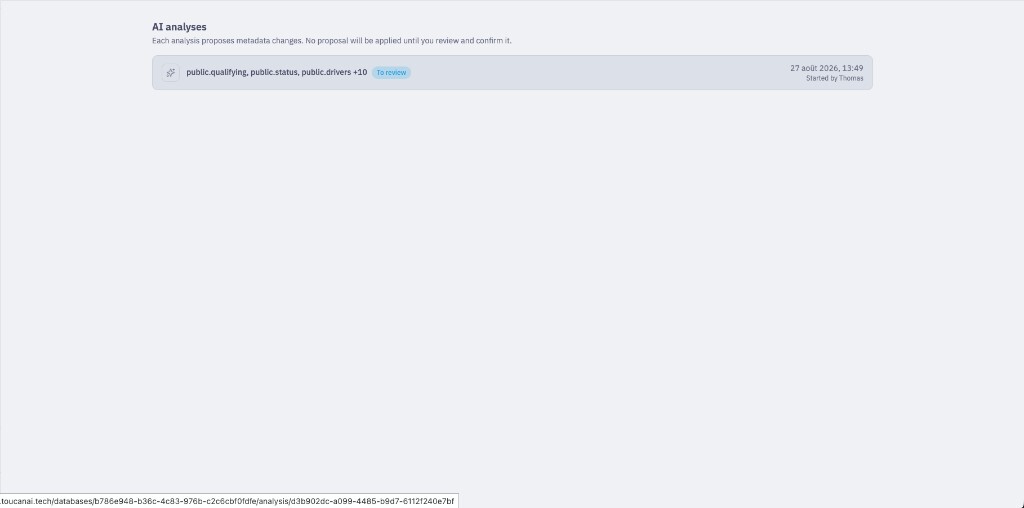
You land on a list of every analysis run for that database, newest first. Runs are never replaced by newer ones: you can always go back to an earlier review.

Each row shows:
- The scope of the run (which schemas and tables were selected)
- When it started and who started it
- A status badge when action is needed (To review)
2. Open a completed run
- Click a run marked To review (or any completed run that still has pending proposals).
- If the run is still running, you see live progress and can Stop the analysis. Proposals are only reviewable after the run completes successfully.
- If the run failed or was cancelled, open it to see how far the pipeline got; there is nothing to confirm until you launch a new analysis.
3. Navigate review sections
A completed run with pending proposals opens a review layout:
- A sidebar lists review sections that still need attention (in review order):
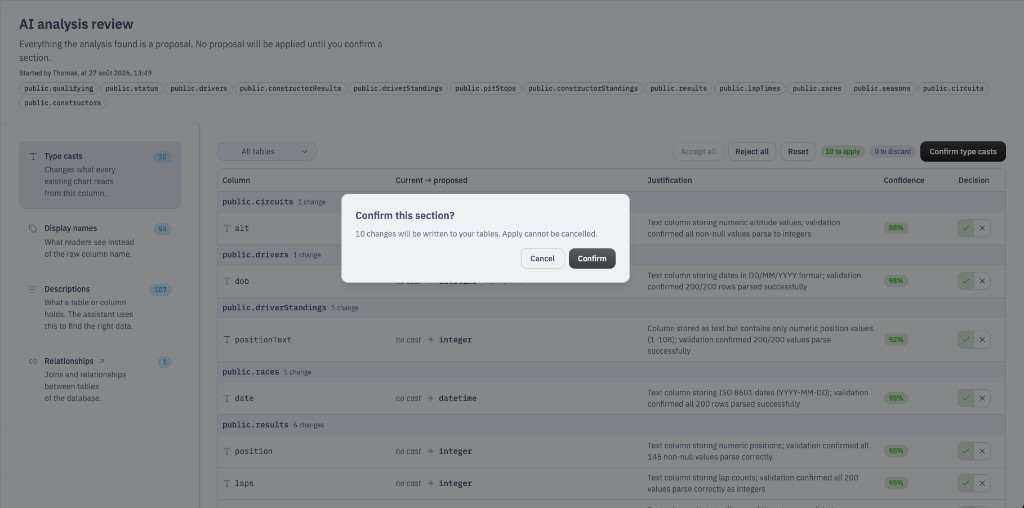
- Type casts — type casts inferred for columns. For example, text to datetime
- Display names — human-readable labels for the UI and chat
- Descriptions — short explanations of what columns represent
- Relationships — suggested joins between tables (reviewed separately; see step 6)
- The main pane shows a diff table for the selected review section: current value vs proposed value, plus Justification (rationale) and Confidence when available — shown only to help you during review.
Justification and confidence are not saved with your metadata and are not available to the AI assistant.
Only review sections that still have something to review appear in the sidebar. When every proposal for a section is confirmed and applied, that section disappears from the list.
4. Decide on proposals
For each row you can:
- Accept the proposal (keep it for application)
- Reject it (discard it; it will not be applied to your metadata)
- Leave it undecided for later
You can mix accepts and rejects in the same review section before confirming.
Use the sticky action bar at the top of the pane:
- Accept all / Reject all — apply to the rows currently visible (respects the table filter)
- Reset — clear local decisions on the visible rows
- Badges show how many proposals are to apply and to discard across the whole review section (including decisions made under a previous filter)
Optionally filter the table by one or more tables so you can review a large run in smaller batches.
Leaving a proposal undecided does not block confirmation of the others. Undecided rows stay pending for a later pass on the same review section.
5. Confirm and apply a section
- When you are ready, click the confirm button for that review section (for example Confirm type casts).
- Confirm the dialog (Confirm this section?). Toucan AI locks that section and starts applying accepted proposals; rejected ones are removed. Apply cannot be cancelled.
- While applying, the UI shows that changes are being applied. Rows disappear as writes land on your metadata.
- If apply fails part-way, what already landed stays applied; remaining confirmed proposals are retried on the next apply of that section.
Repeat for each remaining column review section until the run shows nothing left to review for casts, display names, and descriptions.
6. Relationship suggestions
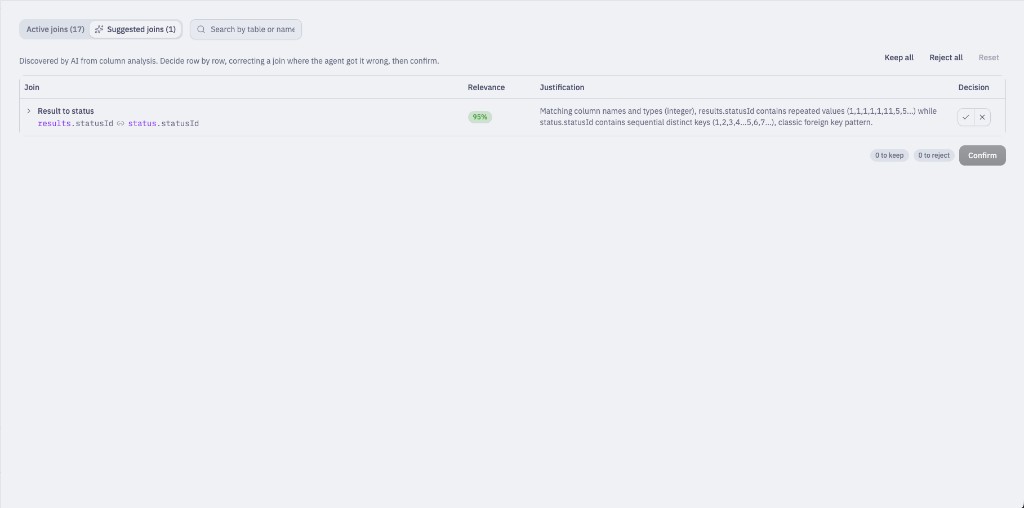
During analysis, Toucan AI also looks for relationships between tables. From the run review sidebar, open Relationships to land on Suggested joins.
- Decide row by row (Keep / Reject), or use Keep all / Reject all / Reset.
- Each suggestion shows relevance (confidence) and a justification.
- Click Confirm to apply kept joins. Suggested joins are not applied through the column proposal confirm buttons.
7. When everything is reviewed
After all column proposals for a run are confirmed, the AI analyses list shows All AI proposals have been reviewed for that run (instead of To review).

Edge cases
| Situation | What to do |
|---|---|
| Run completed with no proposals | Nothing to review: the analysis found nothing to change, or everything was already confirmed. |
| Run failed or cancelled | Launch a new analysis on the same or a smaller set of tables. Previous completed runs and their proposals remain available. |
| Partial re-analysis | Starting a new run on a subset of tables does not delete older runs. Review each run independently. |
| Schema changed after the run | Prefer a new analysis (and/or Refresh Schema) so proposals match the current structure. |
Constraints
- Proposals are not applied until you confirm a review section.
- Confirmation is per review section: you can apply casts today and leave descriptions for tomorrow.
- Analysis consumes AI credits; reviewing and confirming does not add a separate enrichment charge.
Conclusion
Confirmed proposals update your semantic metadata. Tables included in the analysis are marked Available for chat and charts by default.
Suggested Next Step: Complete metadata information or Table Visibility Governance