'%3e%3cpath%20fill-rule='evenodd'%20clip-rule='evenodd'%20d='M0%2062.3176C0%2027.9001%2027.8995%200.00181961%2062.3134%200.00181961L62.3999%2062.2311C62.3999%2096.6462%2034.5004%20124.544%200.0852901%20124.544'%20fill='%233A3D3C'/%3e%3c/g%3e%3cpath%20d='M62.3994%2062.2461V0C96.8133%200%20124.713%2027.8982%20124.713%2062.3158'%20fill='url(%23paint0_linear_6331_3458)'/%3e%3cpath%20fill-rule='evenodd'%20clip-rule='evenodd'%20d='M45.617%2026.2827C47.7276%2026.2827%2049.4382%2027.9933%2049.4382%2030.1052C49.4382%2032.2146%2047.7276%2033.9252%2045.617%2033.9252C43.5064%2033.9252%2041.7958%2032.2146%2041.7958%2030.1052C41.7958%2027.9933%2043.5064%2026.2827%2045.617%2026.2827Z'%20fill='%23F9F6EF'/%3e%3cpath%20fill-rule='evenodd'%20clip-rule='evenodd'%20d='M45.6168%2045.2338C37.2596%2045.2338%2030.4857%2038.461%2030.4857%2030.1038C30.4857%2021.7454%2037.2596%2014.9702%2045.6168%2014.9702C53.9753%2014.9702%2060.7492%2021.7454%2060.7492%2030.1038C60.7492%2038.461%2053.9753%2045.2338%2045.6168%2045.2338ZM45.6168%2012.6686C35.9875%2012.6686%2028.1816%2020.4744%2028.1816%2030.1038C28.1816%2039.7308%2035.9875%2047.5378%2045.6168%2047.5378C55.245%2047.5378%2063.0508%2039.7308%2063.0508%2030.1038C63.0508%2020.4744%2055.245%2012.6686%2045.6168%2012.6686Z'%20fill='%23FECE01'/%3e%3cdefs%3e%3clinearGradient%20id='paint0_linear_6331_3458'%20x1='62.2719'%20y1='4.01754'%20x2='108.703'%20y2='70.5262'%20gradientUnits='userSpaceOnUse'%3e%3cstop%20stop-color='%239ED5CB'/%3e%3cstop%20offset='1'%20stop-color='%23FCE18E'/%3e%3c/linearGradient%3e%3c/defs%3e%3c/svg%3e)
Table
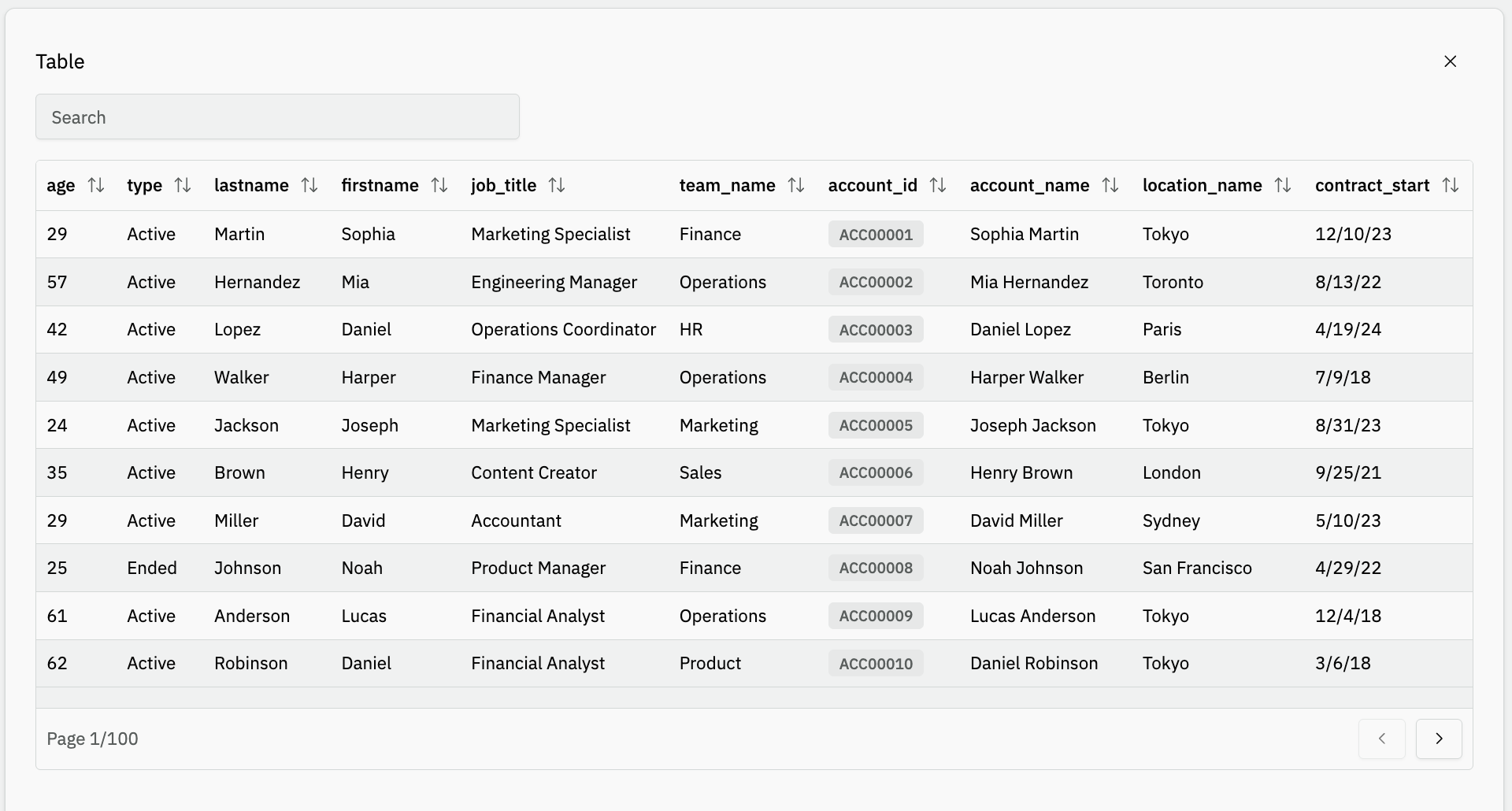
Configure a table in Toucan AI with column display and formatting.
Target Audience: Non-technical users and builders configuring charts in the Library.
Overview
A table lists query rows and columns in the Library or embeds. You choose which columns to show, how headers and values are formatted, and table behavior (pagination, totals, row styling).
Unlike bar or line charts, there is no separate dimension/measure mapping — configuration is per column and per table settings.
In the Library, enable Manual Edit, set Type to Table, and select Data. One block appears per query column under Display columns.
Shared fields (Title, Narrative, Data) are in Chart types.
When to use it
Good fit
- Detailed listings (employees, orders, transactions).
- Exact values where charts would hide precision.
- Paginated logs or directories on a dashboard.
Prefer another chart
- Trends or comparisons → Line chart or Bar chart.
- Two-dimensional intensity grid → Heatmap chart.
- Single KPI → Value.
Examples: employee directory with formatted dates, product catalog with tag-style status, paginated transaction log.
Common setups
- Listing: show/hide columns (eye icon), set Label and formats, set Rows per page.
- Status tags: Style → Tag on a text column.
- Footer totals: Show totals in last row under More table options.
Configuration options
Open the chart in the Library, turn on Manual Edit, select Data, then set Type to Table. The column list updates when the query changes.
Prerequisites: connected database, Manual Edit (how-to).
Column
| Option | How it works |
|---|---|
| Display columns | One row per query column. Eye icon: show or hide in the table. |
| Label | Header text (expand column accordion). |
| Style | Tag for tag-style cell rendering. |
| Format date | On date columns. Preset date display. |
| Format number | On numeric columns. Standard, Percent, Currency (with Currency display), decimals, Unit. |
Table
| Option | How it works |
|---|---|
| Rows per page | Rows per page, 1–150 (default 5). |
| Show totals in last row | More table options. Totals for numeric columns in the footer. |
| Alternate row color | More table options. Alternating row backgrounds. |
The AI assistant can propose visible columns and formatting; use Manual Edit to refine.
Suggested next steps: Chart types · Customize a chart manually · Create a chart with AI