'%3e%3cpath%20fill-rule='evenodd'%20clip-rule='evenodd'%20d='M0%2062.3176C0%2027.9001%2027.8995%200.00181961%2062.3134%200.00181961L62.3999%2062.2311C62.3999%2096.6462%2034.5004%20124.544%200.0852901%20124.544'%20fill='%233A3D3C'/%3e%3c/g%3e%3cpath%20d='M62.3994%2062.2461V0C96.8133%200%20124.713%2027.8982%20124.713%2062.3158'%20fill='url(%23paint0_linear_6331_3458)'/%3e%3cpath%20fill-rule='evenodd'%20clip-rule='evenodd'%20d='M45.617%2026.2827C47.7276%2026.2827%2049.4382%2027.9933%2049.4382%2030.1052C49.4382%2032.2146%2047.7276%2033.9252%2045.617%2033.9252C43.5064%2033.9252%2041.7958%2032.2146%2041.7958%2030.1052C41.7958%2027.9933%2043.5064%2026.2827%2045.617%2026.2827Z'%20fill='%23F9F6EF'/%3e%3cpath%20fill-rule='evenodd'%20clip-rule='evenodd'%20d='M45.6168%2045.2338C37.2596%2045.2338%2030.4857%2038.461%2030.4857%2030.1038C30.4857%2021.7454%2037.2596%2014.9702%2045.6168%2014.9702C53.9753%2014.9702%2060.7492%2021.7454%2060.7492%2030.1038C60.7492%2038.461%2053.9753%2045.2338%2045.6168%2045.2338ZM45.6168%2012.6686C35.9875%2012.6686%2028.1816%2020.4744%2028.1816%2030.1038C28.1816%2039.7308%2035.9875%2047.5378%2045.6168%2047.5378C55.245%2047.5378%2063.0508%2039.7308%2063.0508%2030.1038C63.0508%2020.4744%2055.245%2012.6686%2045.6168%2012.6686Z'%20fill='%23FECE01'/%3e%3cdefs%3e%3clinearGradient%20id='paint0_linear_6331_3458'%20x1='62.2719'%20y1='4.01754'%20x2='108.703'%20y2='70.5262'%20gradientUnits='userSpaceOnUse'%3e%3cstop%20stop-color='%239ED5CB'/%3e%3cstop%20offset='1'%20stop-color='%23FCE18E'/%3e%3c/linearGradient%3e%3c/defs%3e%3c/svg%3e)
Customize a chart manually
Target Audience: Non technical users
Goal
Modify the technical configuration and visual appearance of a chart through the manual editor.
Prerequisites
- A connected and active database.
- An existing chart created with AI or manually that you wish to customize in the Library.
Steps
1. Access the Chart Library
- Navigate to the Library tab from the main menu.
- Select an existing chart from the list to open the visualization.
2. Enable Manual Edit Mode
- Click the Manual Edit switch to exit the AI conversational interface.
- Access the manual configuration panels for data and design.
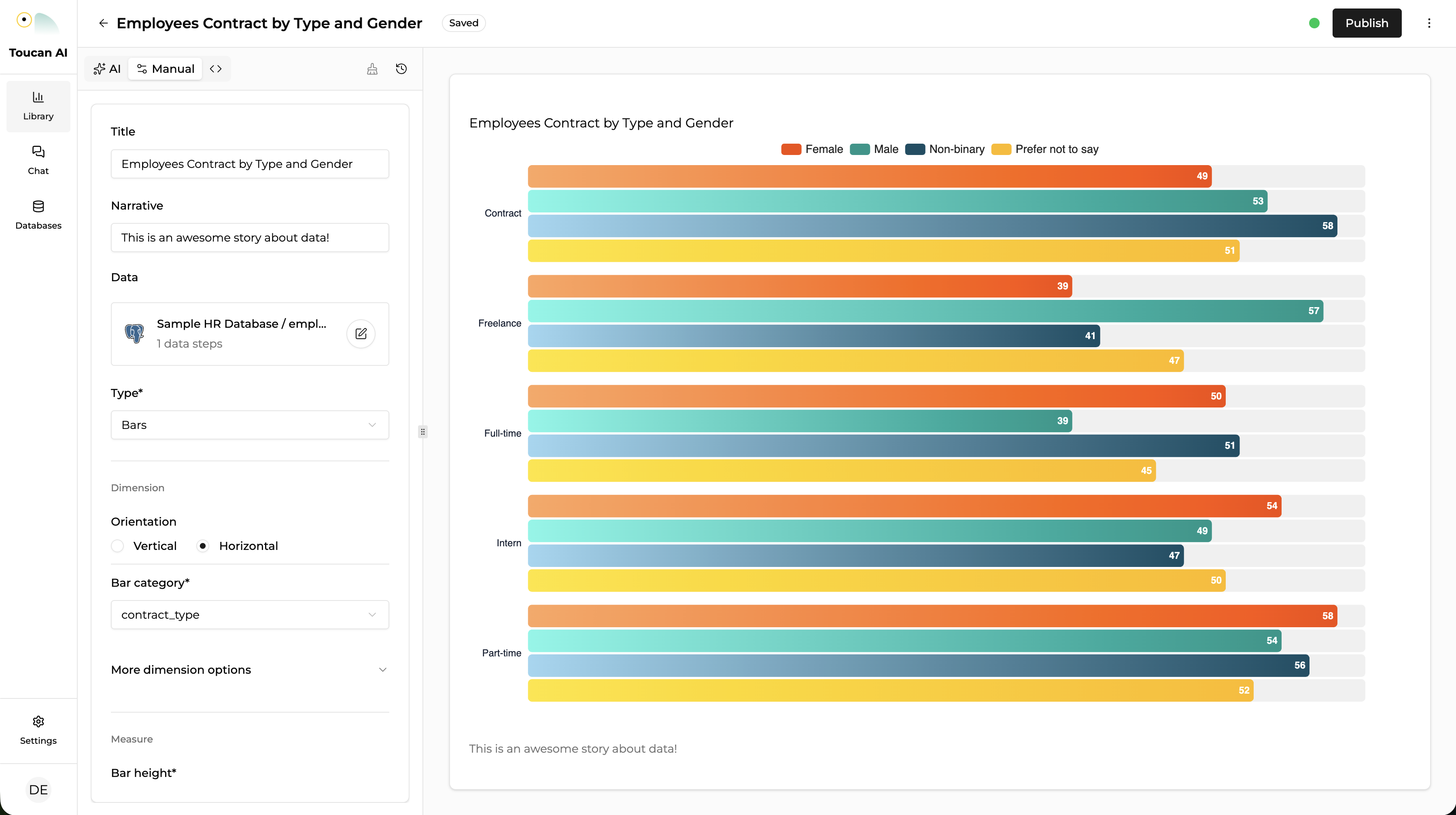
3. Configure Title and Narrative
- Input a factual title for the chart.
- Provide a narrative description to explain the data significance to end-users.
4. Adjust Data and Dimensions
- Data Steps: Review and modify the data processing steps generated by the AI.
- Dimensions: Assign qualitative attributes to the chart axes (e.g., Department, Region).
- Measures: Assign quantitative values to be visualized (e.g., Revenue, Headcount).
5. Modify Chart Type and Layout
- Select a visual format, such as bar, line, or pie charts.
- Adjust the chart orientation between horizontal and vertical layouts.
- Select specific subtypes, such as switching from a stacked bar to a regular bar chart.
6. Refine Data Presentation
- Precision: Set the number of decimal places or round values.
- Formatting: Apply units (e.g., %, $) and define number styles.
- Preview: View the updated chart in the editor to validate the visual output.
7. Save Changes
- Verify that the status indicates the chart is saved.
- The updated chart is now available for placement in dashboards.
Conclusion
The chart is manually refined and saved to the organization Library. You may now integrate this visualization into a dashboard or apply Row-Level Security (RLS).
Suggested Next Step: How-to: Create a dashboard with AI