'%3e%3cpath%20fill-rule='evenodd'%20clip-rule='evenodd'%20d='M0%2062.3176C0%2027.9001%2027.8995%200.00181961%2062.3134%200.00181961L62.3999%2062.2311C62.3999%2096.6462%2034.5004%20124.544%200.0852901%20124.544'%20fill='%233A3D3C'/%3e%3c/g%3e%3cpath%20d='M62.3994%2062.2461V0C96.8133%200%20124.713%2027.8982%20124.713%2062.3158'%20fill='url(%23paint0_linear_6331_3458)'/%3e%3cpath%20fill-rule='evenodd'%20clip-rule='evenodd'%20d='M45.617%2026.2827C47.7276%2026.2827%2049.4382%2027.9933%2049.4382%2030.1052C49.4382%2032.2146%2047.7276%2033.9252%2045.617%2033.9252C43.5064%2033.9252%2041.7958%2032.2146%2041.7958%2030.1052C41.7958%2027.9933%2043.5064%2026.2827%2045.617%2026.2827Z'%20fill='%23F9F6EF'/%3e%3cpath%20fill-rule='evenodd'%20clip-rule='evenodd'%20d='M45.6168%2045.2338C37.2596%2045.2338%2030.4857%2038.461%2030.4857%2030.1038C30.4857%2021.7454%2037.2596%2014.9702%2045.6168%2014.9702C53.9753%2014.9702%2060.7492%2021.7454%2060.7492%2030.1038C60.7492%2038.461%2053.9753%2045.2338%2045.6168%2045.2338ZM45.6168%2012.6686C35.9875%2012.6686%2028.1816%2020.4744%2028.1816%2030.1038C28.1816%2039.7308%2035.9875%2047.5378%2045.6168%2047.5378C55.245%2047.5378%2063.0508%2039.7308%2063.0508%2030.1038C63.0508%2020.4744%2055.245%2012.6686%2045.6168%2012.6686Z'%20fill='%23FECE01'/%3e%3cdefs%3e%3clinearGradient%20id='paint0_linear_6331_3458'%20x1='62.2719'%20y1='4.01754'%20x2='108.703'%20y2='70.5262'%20gradientUnits='userSpaceOnUse'%3e%3cstop%20stop-color='%239ED5CB'/%3e%3cstop%20offset='1'%20stop-color='%23FCE18E'/%3e%3c/linearGradient%3e%3c/defs%3e%3c/svg%3e)
Apply RLS to your database
Target Audience: Developers & Non technical users
Goal
Establish a secure mapping between dynamic user attributes and dataset fields to filter data at query time.
Prerequisites
- A connected database containing columns suitable for filtering (e.g.,
region,team_id,department). - An existing dashboard or chart to validate the filtering logic.
- A valid API key to generate test tokens in the sandbox.
Steps
1. Verify dataset compatibility
- Navigate to the Databases tab and select the target Database and Table.
- Click Preview to confirm the presence of the column intended for filtering (e.g., a
locationcolumn containing values like "Paris" or "Tokyo").
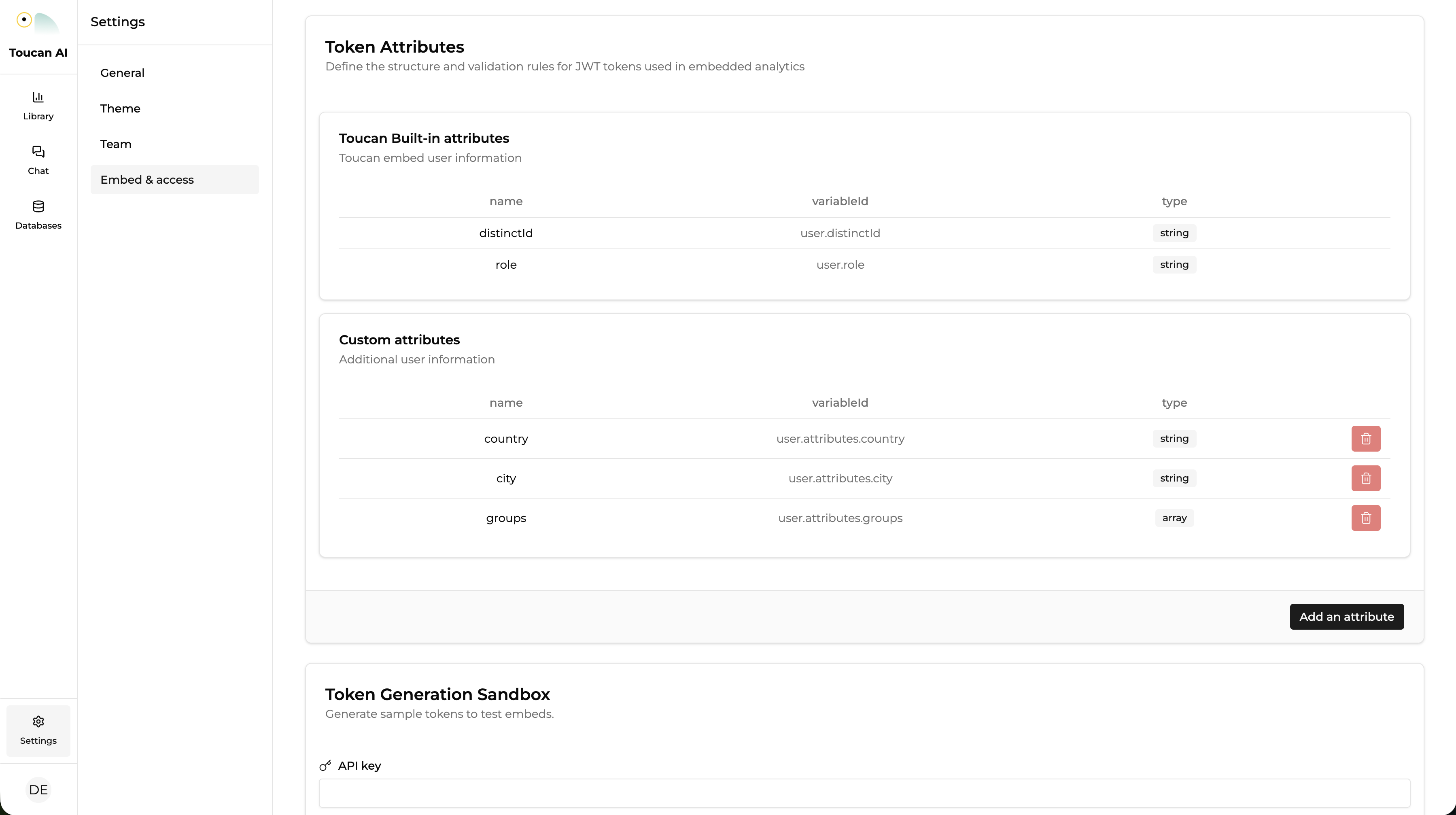
2. Define custom token attributes
- Navigate to the Settings tab and select the Embed & access section.
- Locate the Token Attributes menu under Custom Attributes.
- Click Add an attribute.
- Input a factual name (e.g.,
location) and select the data type (e.g.,String). - Click Save changes to register the attribute for use in authentication tokens.
3. Map attributes to database columns
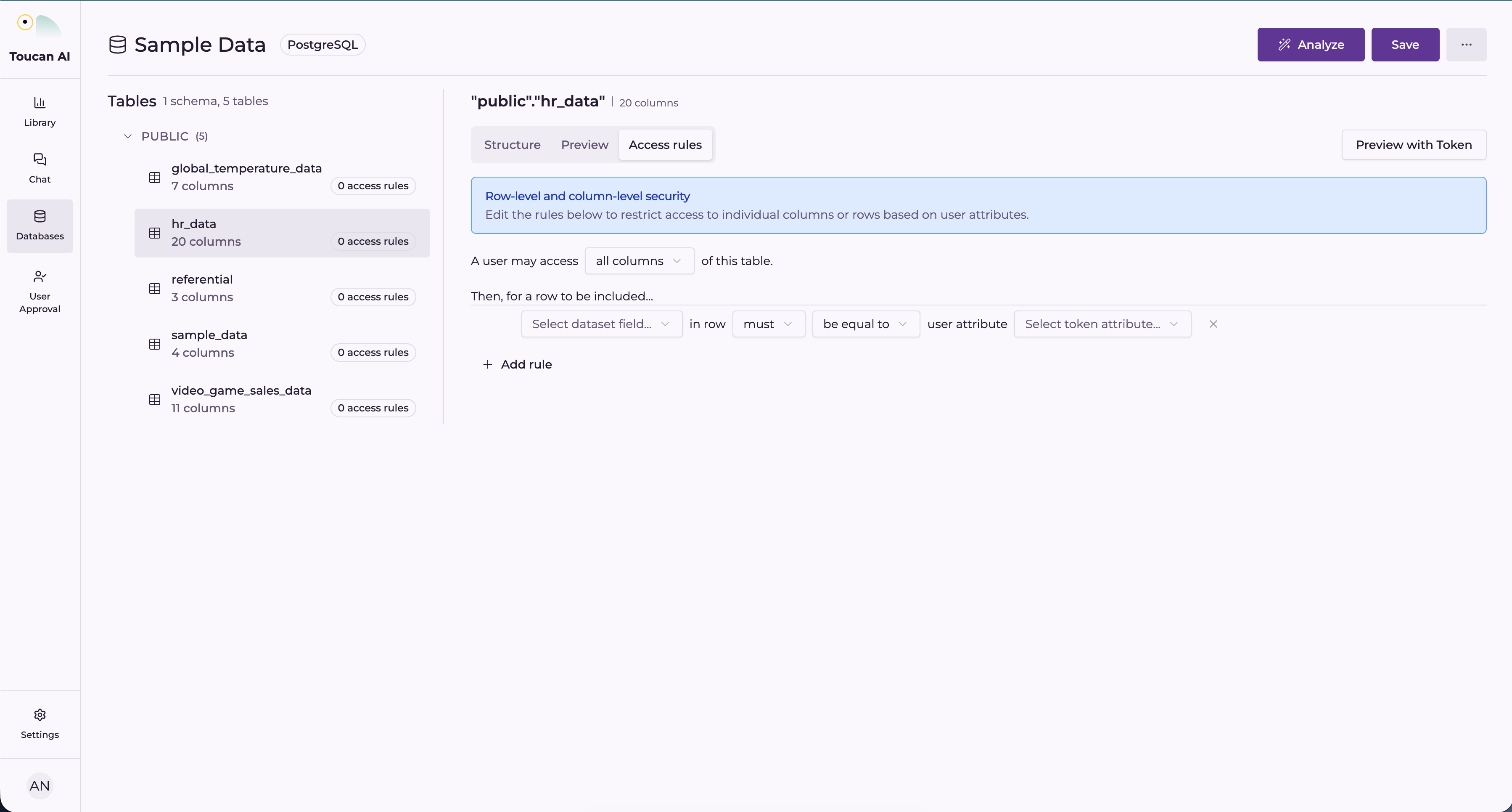
- Return to the Databases section and select your Database and Table.
- Click the Access rules tab to configure security policies.
- Under the section "Then, for a row to be included...", use the rule builder to define your filter.
- In the Select dataset field dropdown, choose the column in your database you want to filter (e.g.,
location_name). - Ensure the operator is set to must be equal to.
- In the Select token attribute dropdown, select the custom attribute created in Step 2 (e.g.,
location).
4. Enable and save RLS
- Click Save to activate the security policy.
- Verify that the RLS enabled blue tag appears next to the table name.
- You may repeat this mapping for additional tables that require the same security logic.
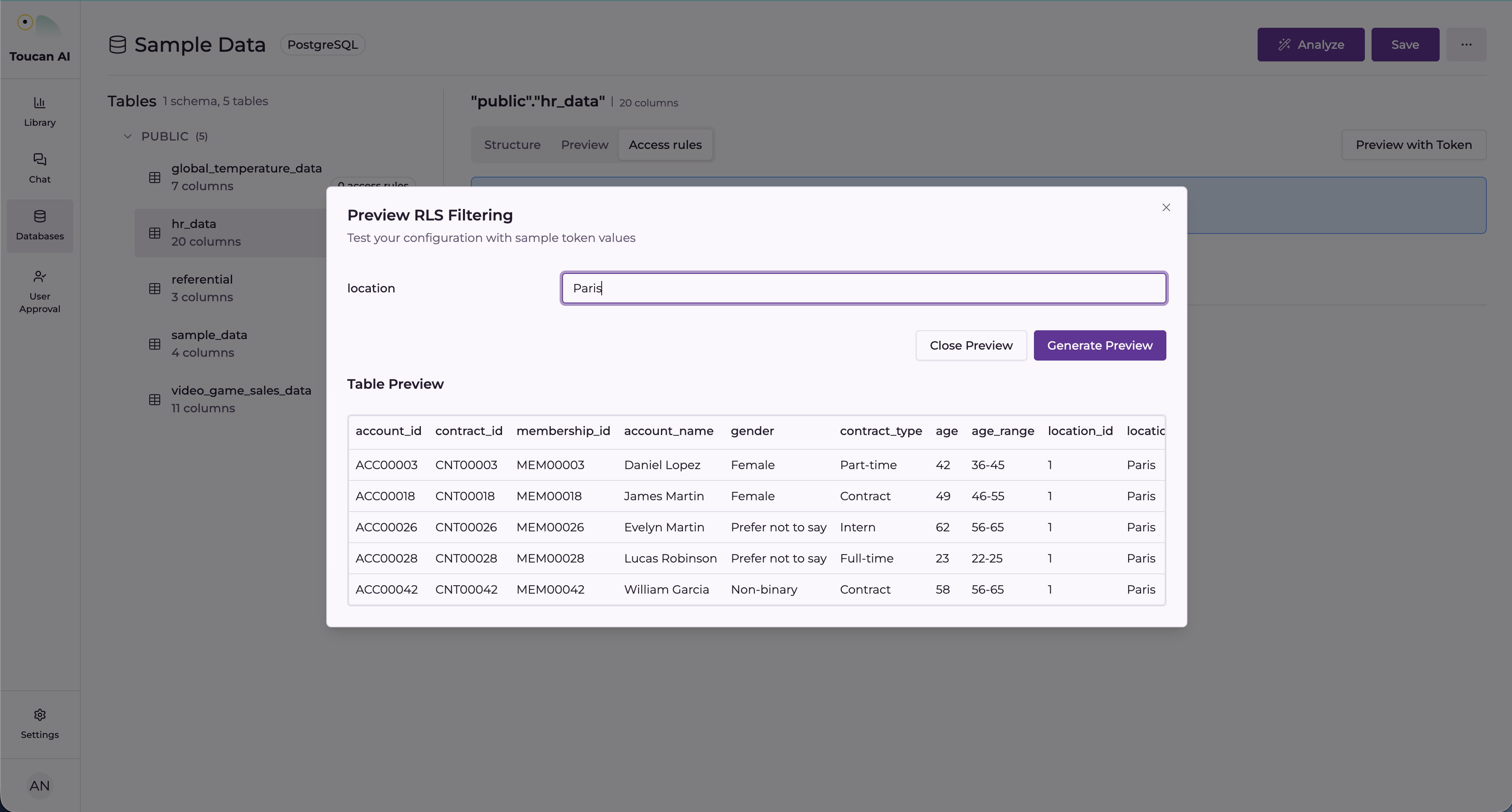
5. Validate the RLS policy
- Within the table view, click Preview with Token in the top right corner.
- Enter a test value for your custom attribute (e.g.,
Paris) and click Generate Preview. - Confirm that the displayed data rows are strictly limited to the value provided.
6. Generate a test token and embed
- Navigate to Settings > Embed & access and scroll to the Token Generation Sandbox.
- Enter your API Key and assign a value to your custom attribute (e.g.,
location=Paris). - Click Generate Token.
- Use this token in your embedded component (e.g.,
<tc-dashboard auth-token="YOUR_TOKEN">) to confirm the filtered view in your host application.
Conclusion
The database now enforces Row-Level Security based on the identity context passed via authentication tokens. This ensures data isolation in multi-tenant environments without the need for multiple dashboards.
To restrict which columns users can see on the same table, see Apply CLS to your database.